
Whether running Membership Dues Invoices for ALL Active members, or reviewing and running any missing Membership Dues Invoices, the Process Dues screen will walk you through the process.
On the left side navigation bar under Events, select Carnival Year. This will take you here:
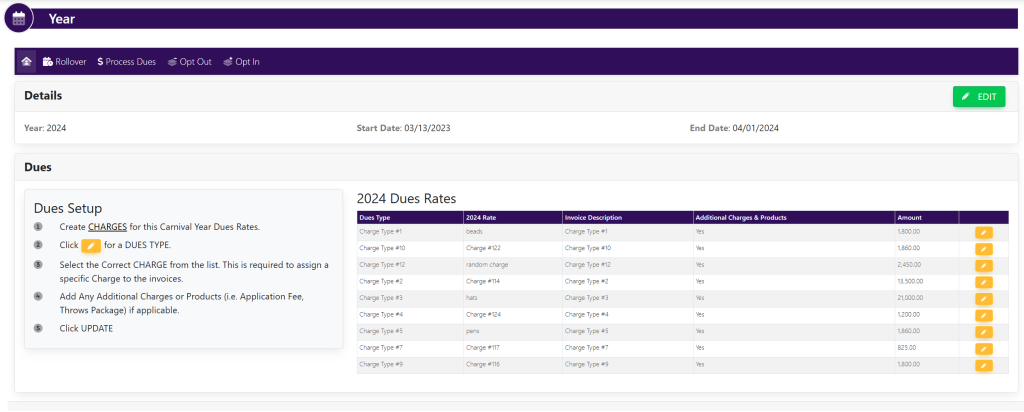
Within the horizontal navigation bar, select Process Dues. This will take you here:
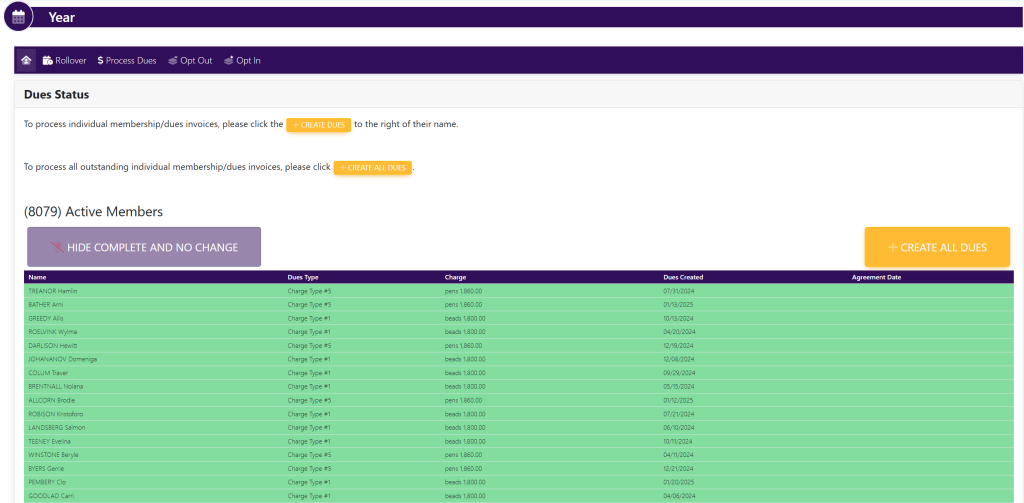
Note: This page will review every active user account, expected Dues Rates, Dues Rates processed, and Agreement completed date for the year. It may take up to a minute or more to load
Here are the details of the columns shown and what they mean:
- Name – User First and Last Name
- Dues Type – Dues Type assigned to the User
- Charge – The Dues Type name, and amount to be assigned to the Dues invoice for the User
- Dues Created –
- No Invoice To Create – The system will not create a Dues invoices. Reasons include:
- No Dues Type Assigned
- Dues Type is for $0.00
- + CREATE DUES button – No Dues invoice has been create for the user for this Carnival Year
- Date (mm/dd/yyyy) – Created date for the User’s Dues invoice
- No Invoice To Create – The system will not create a Dues invoices. Reasons include:
- Agreement Date
To Process ALL Membership Dues
Select the yellow button titled +CREATE ALL DUES at the top of the active members box.
To Process a Specific User Membership Dues
Select the yellow button titled +CREATE DUES to the right of the User’s information. When the process is complete, the +CREATE DUES button will be replaced with the date of the new invoice.