
Search for the member using the top search bar to locate the member that the amount is to be transferred from. In the popup, select View in the top left corner. This will take you here:
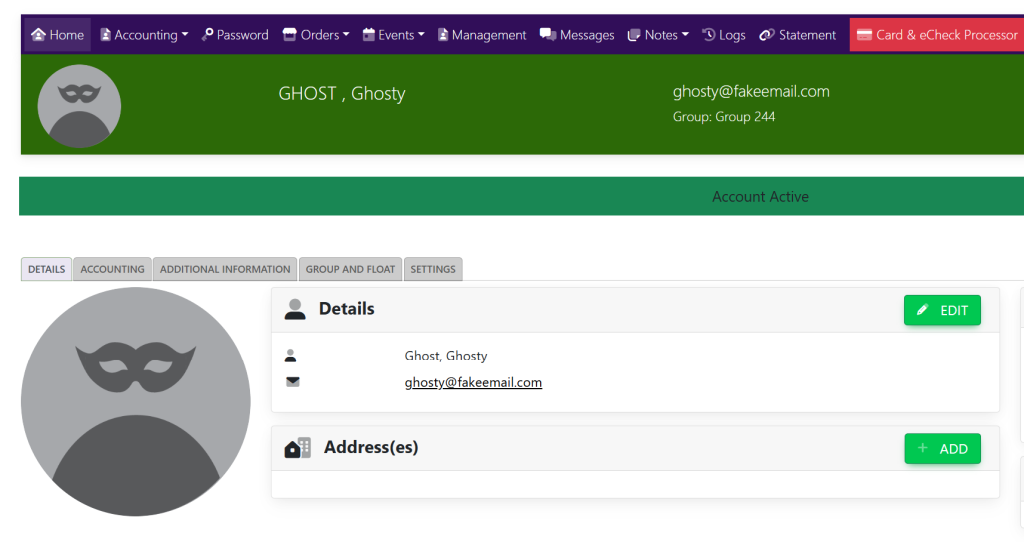
Within the Member details page, select the accounting tab. This will take you here:
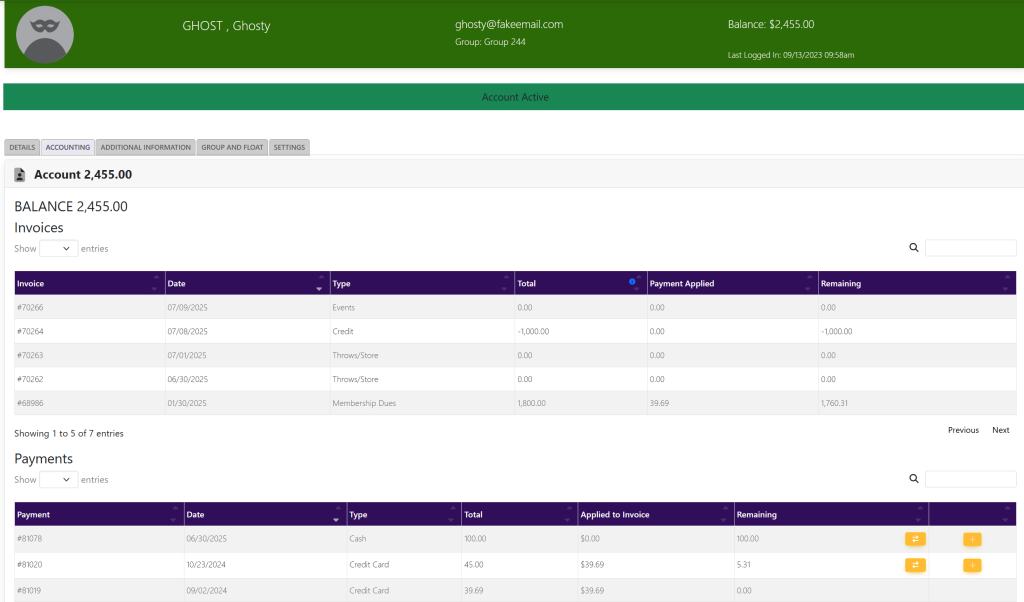
Locate the Payments box. To the right of the payment that you would like to transfer, select the yellow arrows. A popup will appear that looks like this:
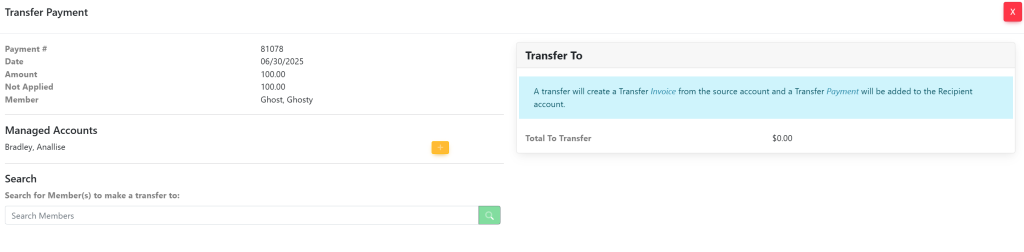
At the bottom of the pop up under Search, type in the members’ name and select the green magnifying glass. A list will appear that looks like this:
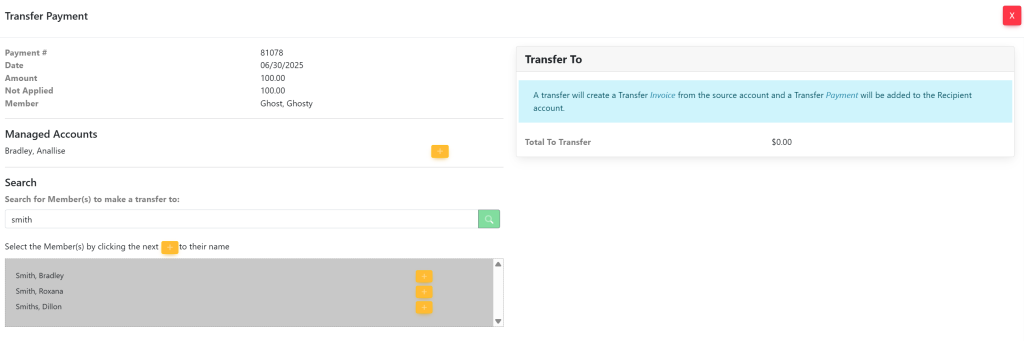
To the right of the members’ name that you would like to transfer the payment to, click the yellow + button. Your pop up will now look like this:
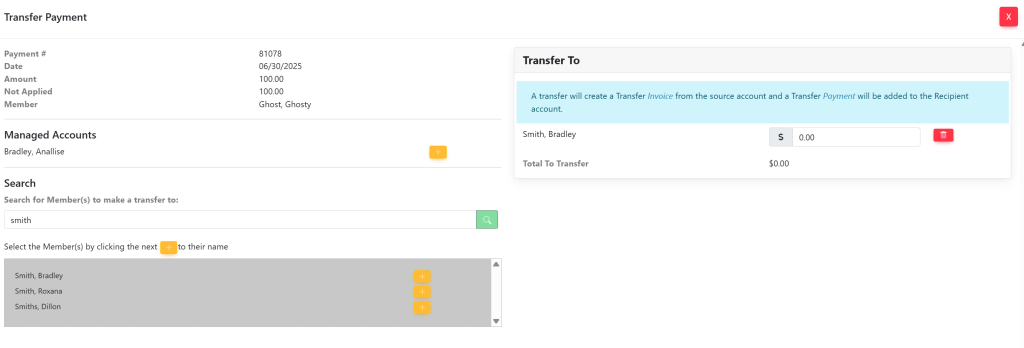
On the right side of the pop up under Transfer To, enter the amount to be transferred to the other account. Your pop up will now look like this:
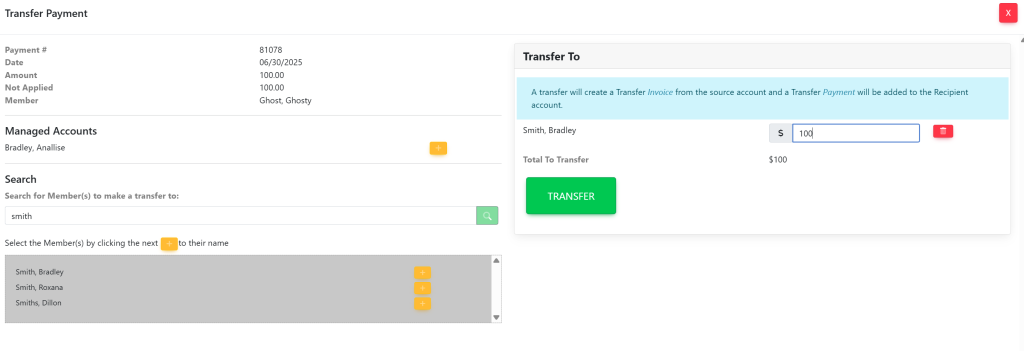
Select the green button titled Transfer. Your pop up will now have a notification letting you know that the amount has been transferred. It will look like this:
