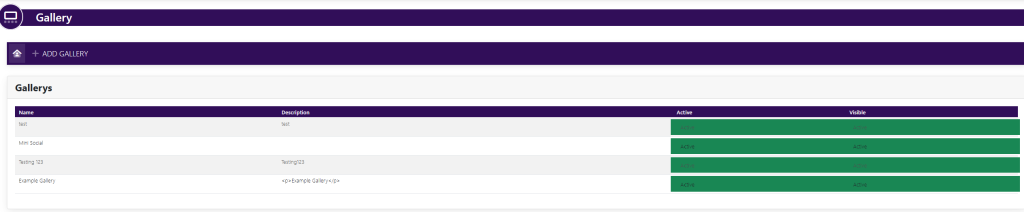
Within the left side navigation bar under NEWS & CALENDAR, select Gallery (not the Gallery option at the top of the page). This will take you here:
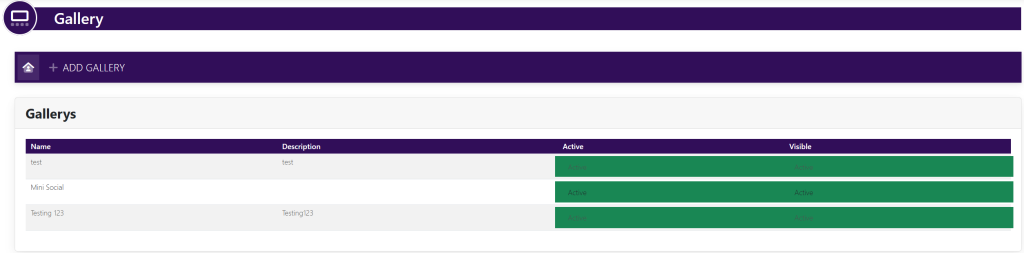
In the horizontal navigation bar, select +ADD GALLERY. This will take you here:
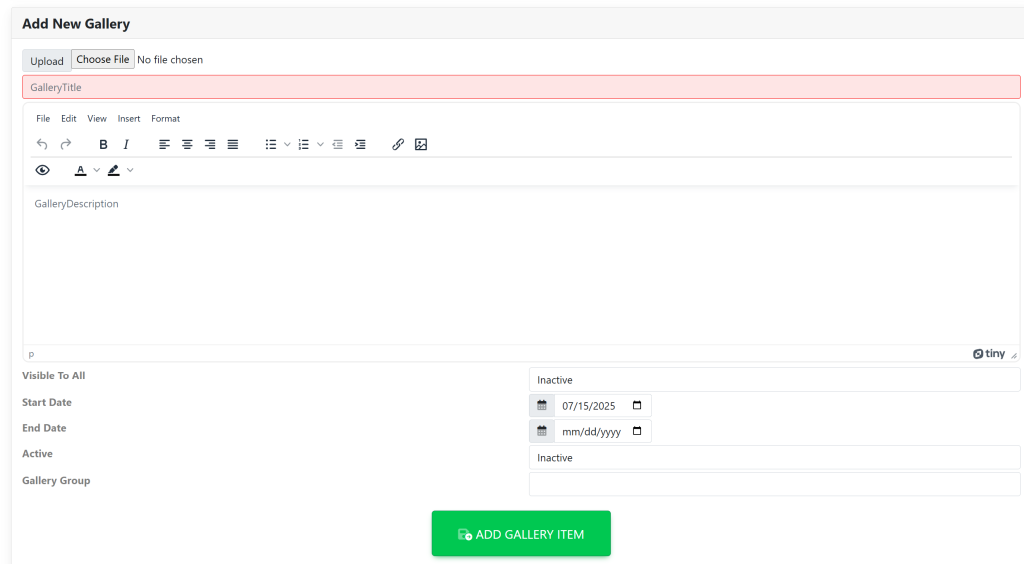
Fill in the following fields:
- Upload an image (If you wish. This is not required.)
- Gallery Title
- Gallery Description
- Visible To All – Use the On/Off toggle
- Start Date
- End Date (After this date, the gallery will no longer be visible to your members.)
- Active (This makes it visible to your members.)
- Gallery Group (This allows you to make this gallery only visible to a specific group.)
Your page will now look like this:
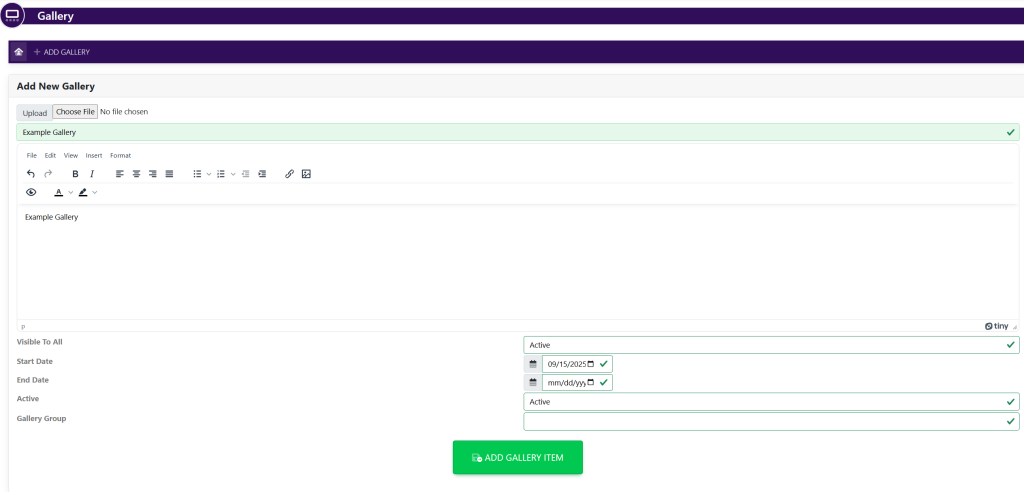
Once you have filled in these fields, select the green button titled Add Gallery Item. The new gallery will now show within the current list of galleries. See here: