
Within the left side bar under EVENTS, select Events. This will take you here:
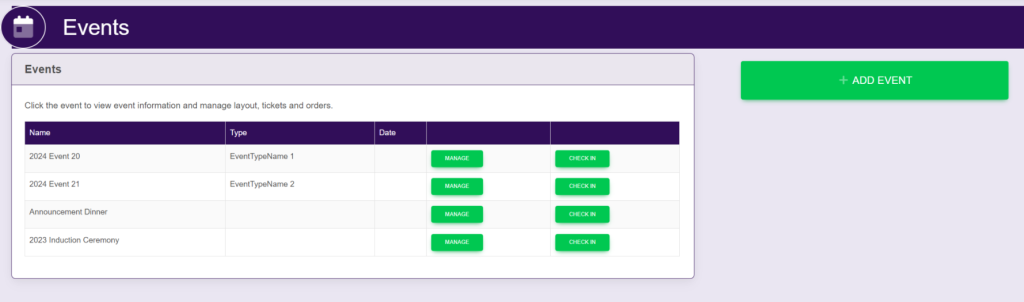
Select the desired event. This will take you here:
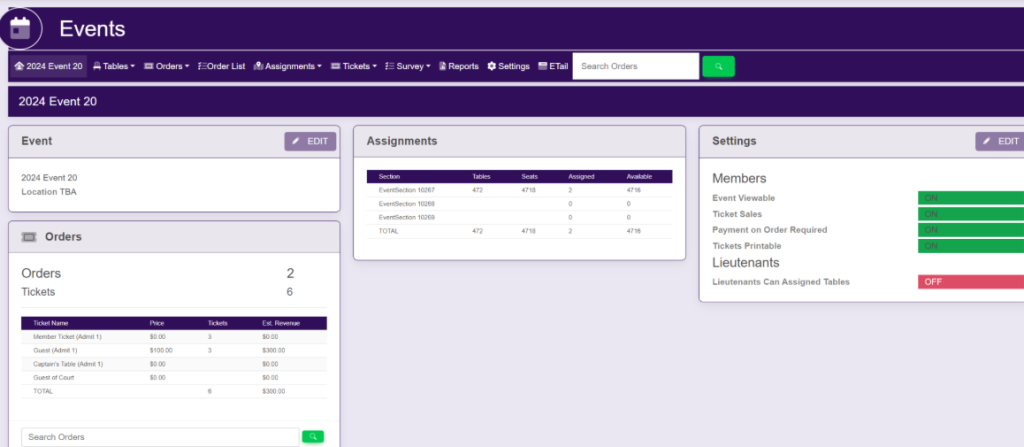
Within the horizontal navigation bar, select Order List. This will take you here:
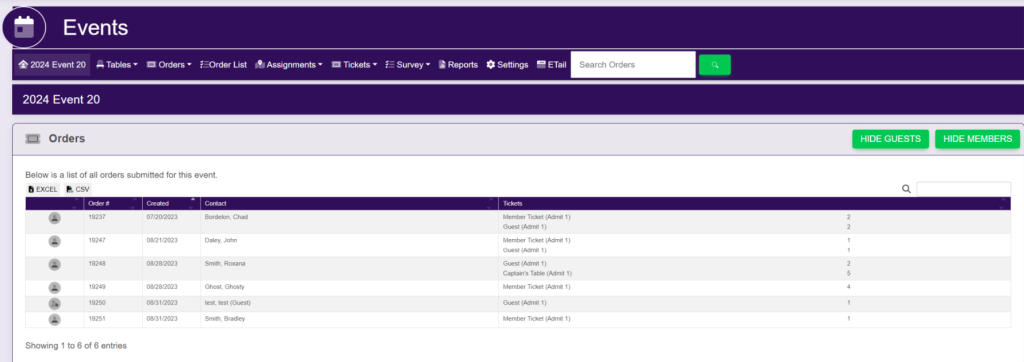
Select your desired order. This will take you here:
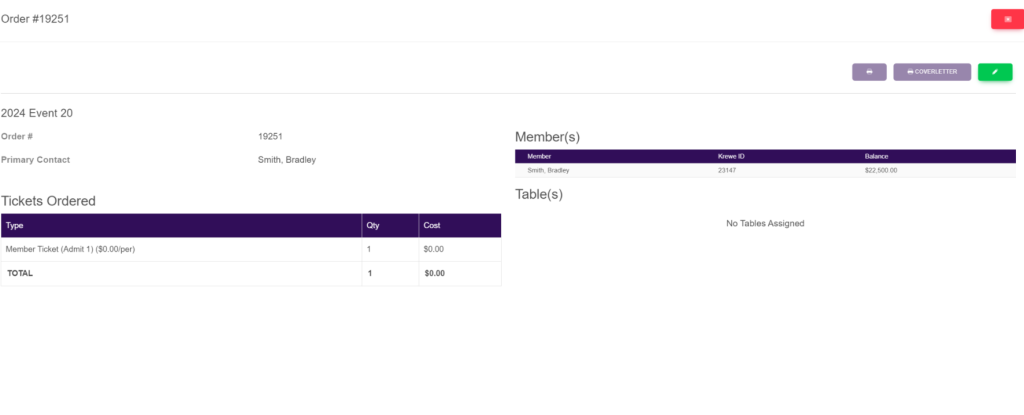
In the top right hand of the pop up, select the green edit button. This will take you here:
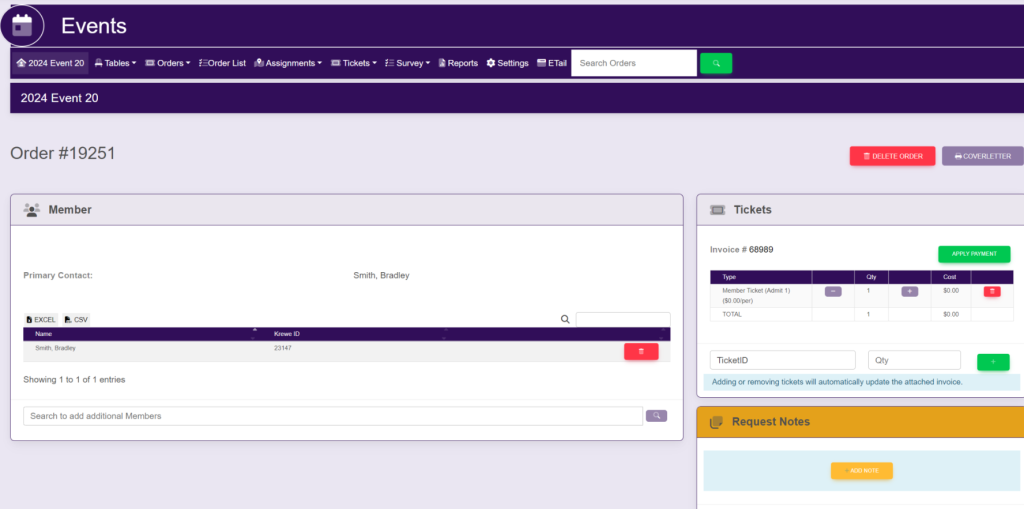
Within the Tickets box, select the green button titled Apply Payment. A pop up will appear that looks like this:
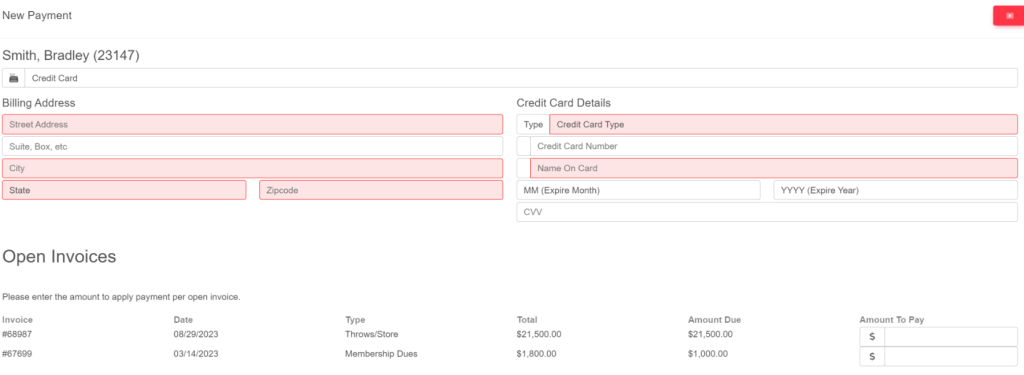
Type in the required payment information.
Then, select the invoice in which you wish to apply a payment. To the right of the invoice under Amount To Pay, type in the amount that you wish to pay.
Once you have typed in your desired information, a green button will appear at the bottom of the pop up titled Submit Payment. It will look like this:
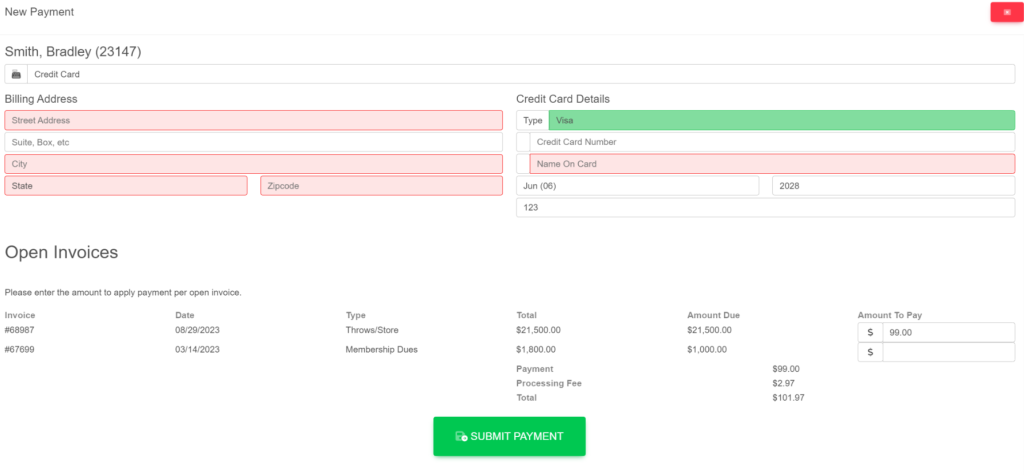
The payment will then be applied to the invoice.
These are samples.