
On the left-hand side of the screen in the navigation bar, select My Account. This will take you here:
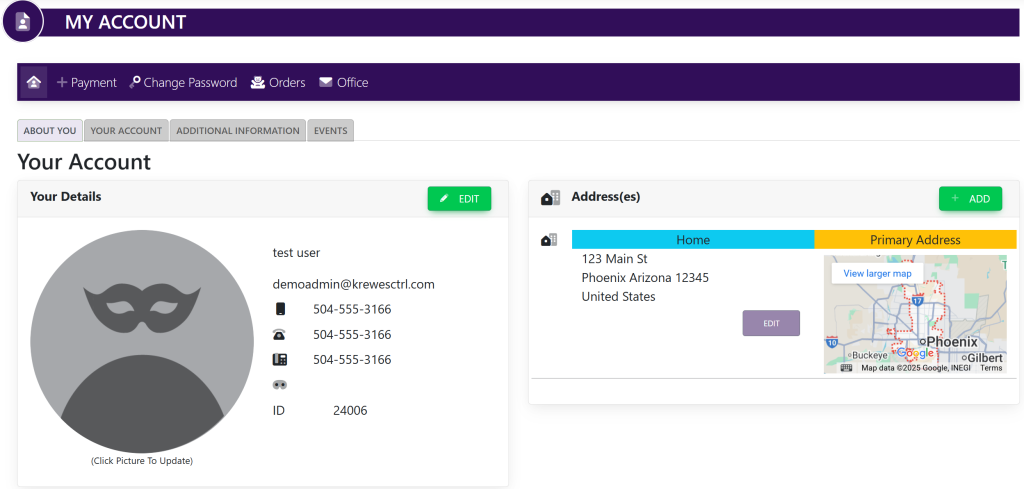
In the horizontal navigation bar, select Change Password. A pop up will appear that looks like this:

The criteria for the passwords are:
- One uppercase letter
- One lowercase letter
- One number
- One special character
- At least 10 characters long
Type in your new password in the first box. To view your password, select the eyeball icon to the right of the box.
Re-type your new password in the second box titled Repeat Password. To view your password, select the eyeball icon to the right of the box.
Make sure both of your passwords match. If the passwords do not match, a red error bar will appear to indicate mismatched entries.
Once your passwords match and meet the required criteria, a button titled Update Password will appear at the bottom of the window.
Click the Update Password to finalize your password change.