
Upon logging in, there will be a red banner presented at the top of your screen notifying you that you have a balance on your account. See here:
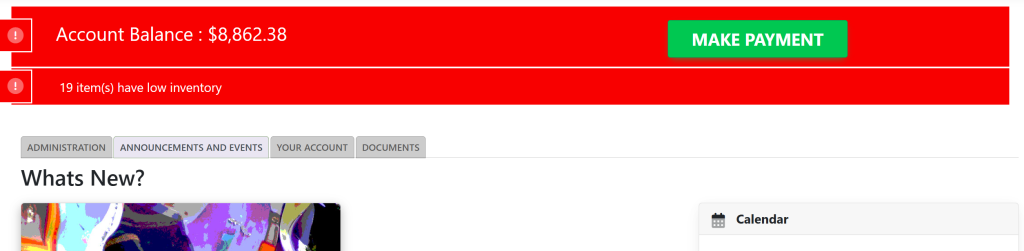
Select the Payment button to the right of this window. This will take you here:
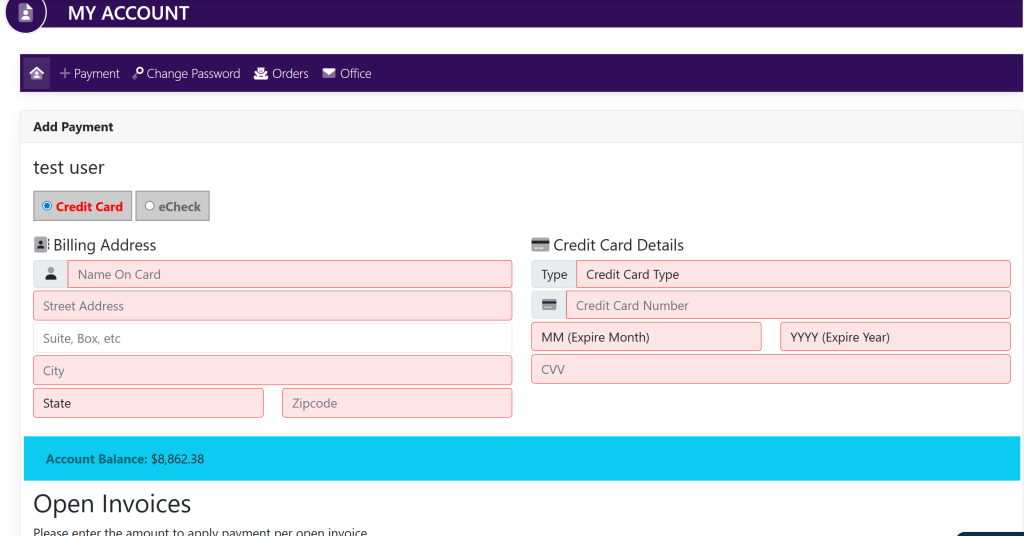
Alternatively
You can also access the Payment screen by selecting My Account on the left-hand side of the screen. This will take you here:
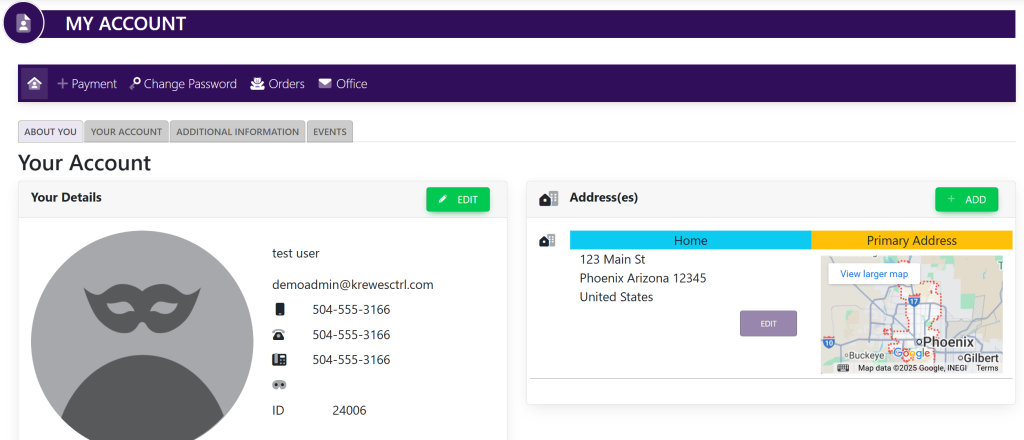
In the horizontal navigation bar, select +Payment. A new page will appear that looks like this:
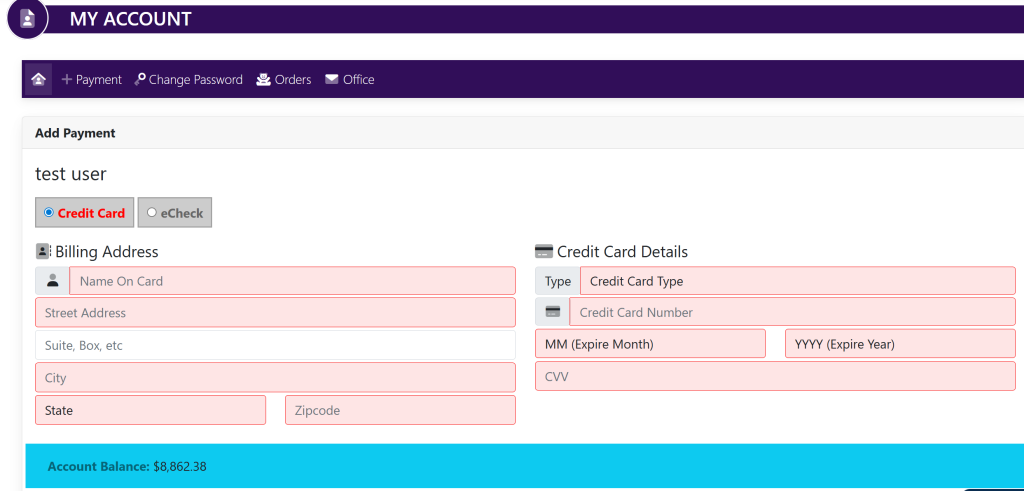
Enter your billing address and credit card details in this window.
Scroll down to the bottom of the screen to Open Invoices.
To make a payment on a specific invoice, use the selection window to the right of the invoice with a $ symbol. Type the amount you want to pay for that invoice in this window. It will look like this:
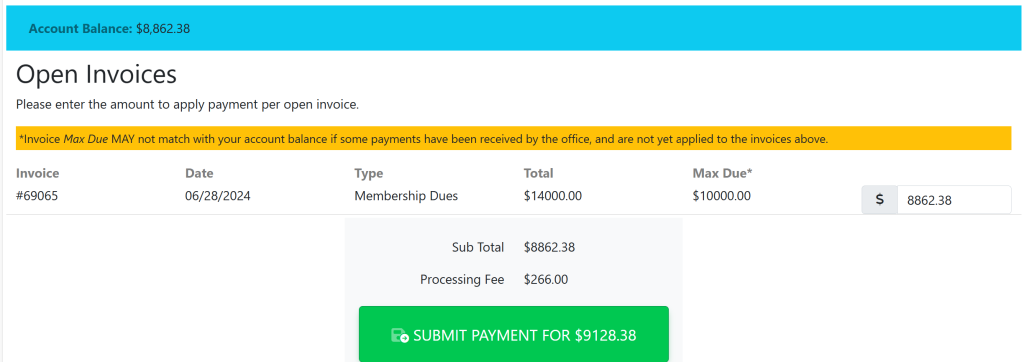
Once you have entered your billing address and credit card info, then selected the amount you want to pay on your invoice, a button will appear titled Submit Payment.
Click the Submit Payment button to make a payment.