
Within the left side bar under MEMBER, select Member(s). This will take you here:
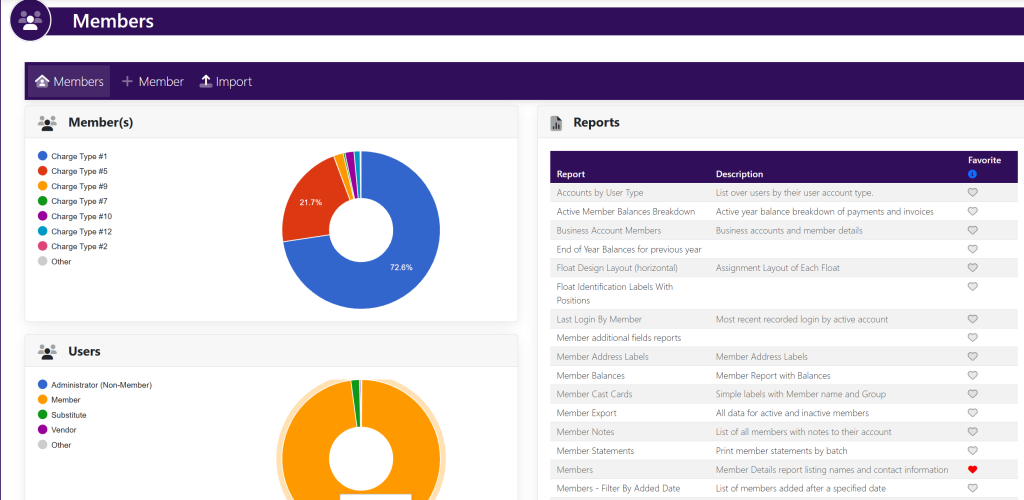
In the Reports box, select Member Balances.
Another page will appear that looks like this:

Select your filters in the Filters box:
- Zero Balances
- Show Flexible User Name
Select your filters in the Columns box:
- Middle Name
- Date of Birth
- Krewe ID
- Phone (Cell)
- Group
- Float
- Joined Carnival Year
A list of results will appear below the filters.
If you would like to download your report, select EXCEL at the top left of the results. This will export your report into an excel spreadsheet on your local computer.
Alternatively
You can access this report by selecting the Reports button at the top right hand of your screen near the Settings and Configurations. A page will appear that looks like this:
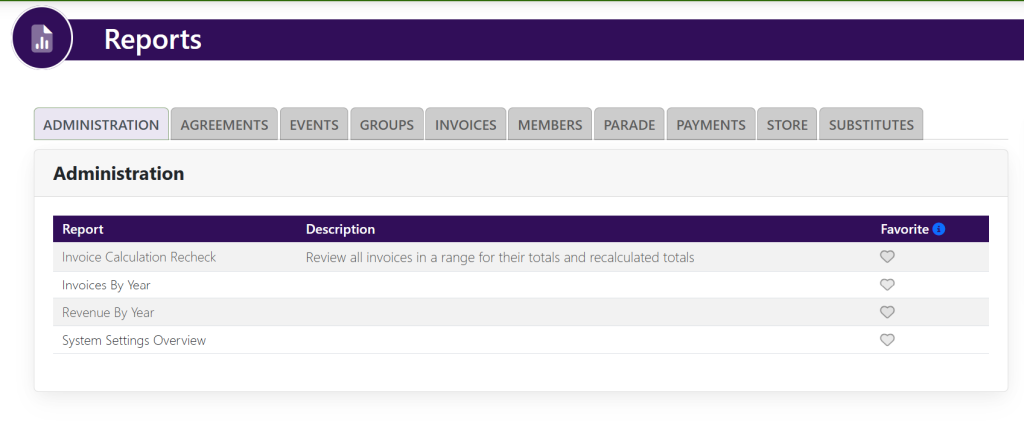
Select the tab titled Members. The page will then look like this:
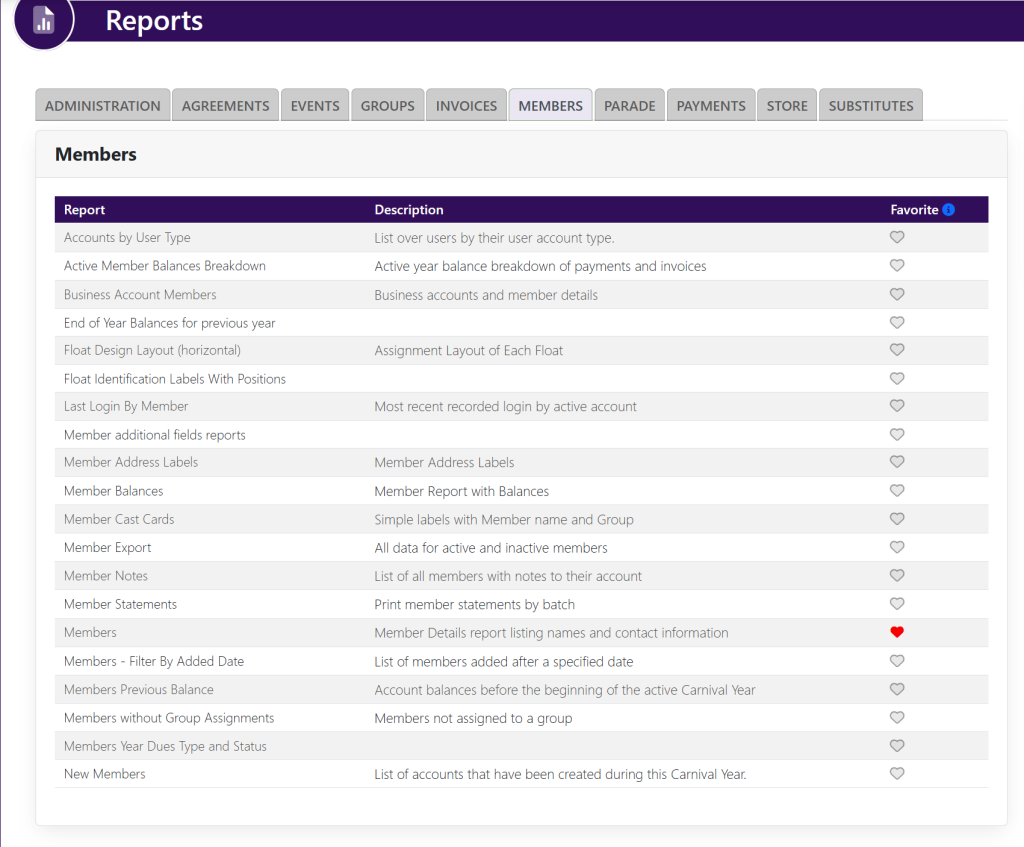
You will then locate the report titled Member Balances and follow the directions mentioned above.