
On the left-hand side of the screen in the navigation bar under Events, select Parade. This will take you here:
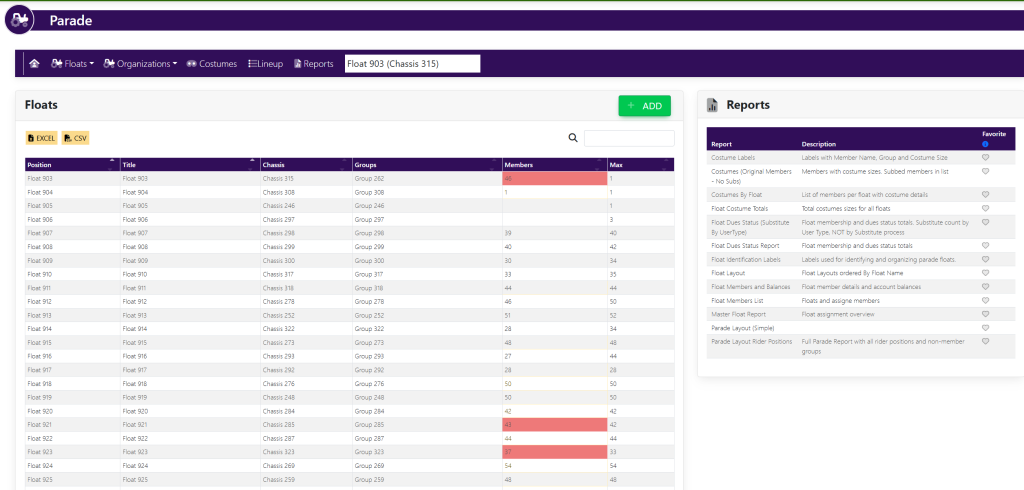
Within the box titled Floats, locate the name of the float that you would like to add images to. Then, click the name of the float. This will bring you to a pop-up window titled Float Details that looks like this:
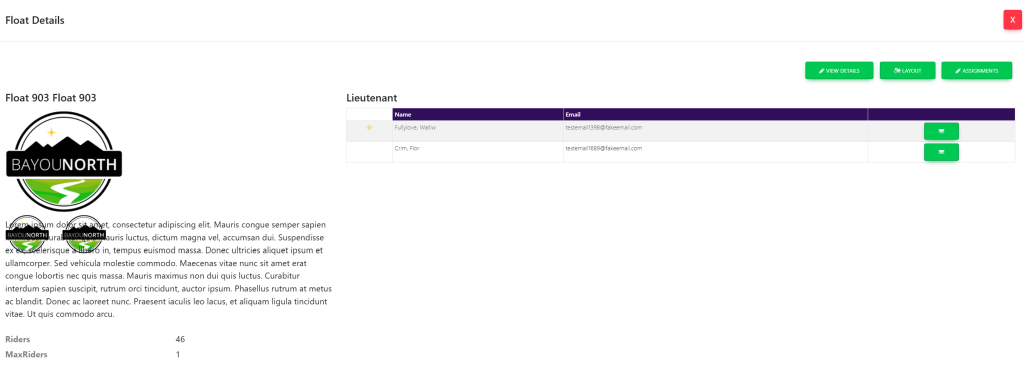
Click the button at the top right of the window titled View Details. This will bring you to a new page with more float details that looks like this:
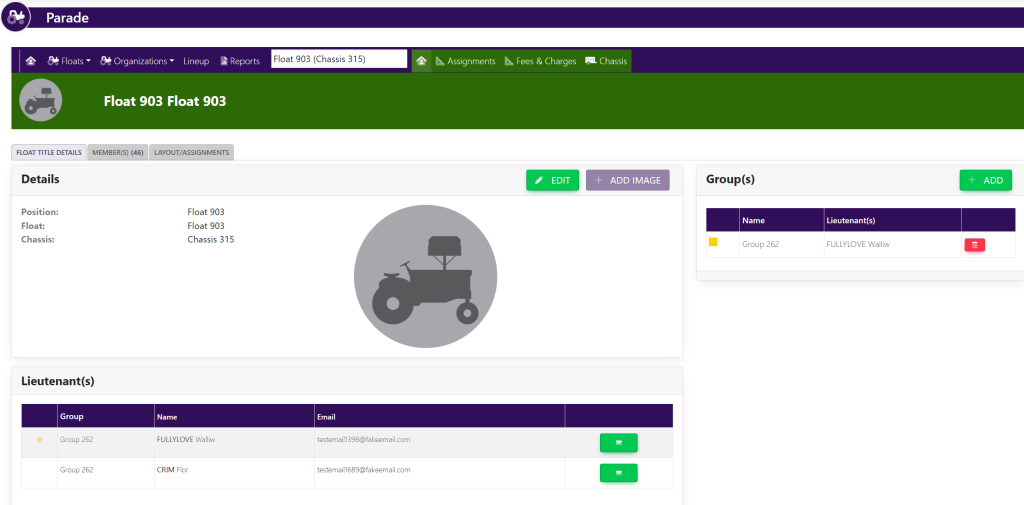
In the Details box, select Add Image. This will bring you to a pop-up window titled Add Images that looks like this:

Select Choose File.
Once you have uploaded your images, select the green button at the bottom of the window titled Save.